DETAILED HELP
How do I publish or unpublish several listings?
Last revised: 12-Nov-26
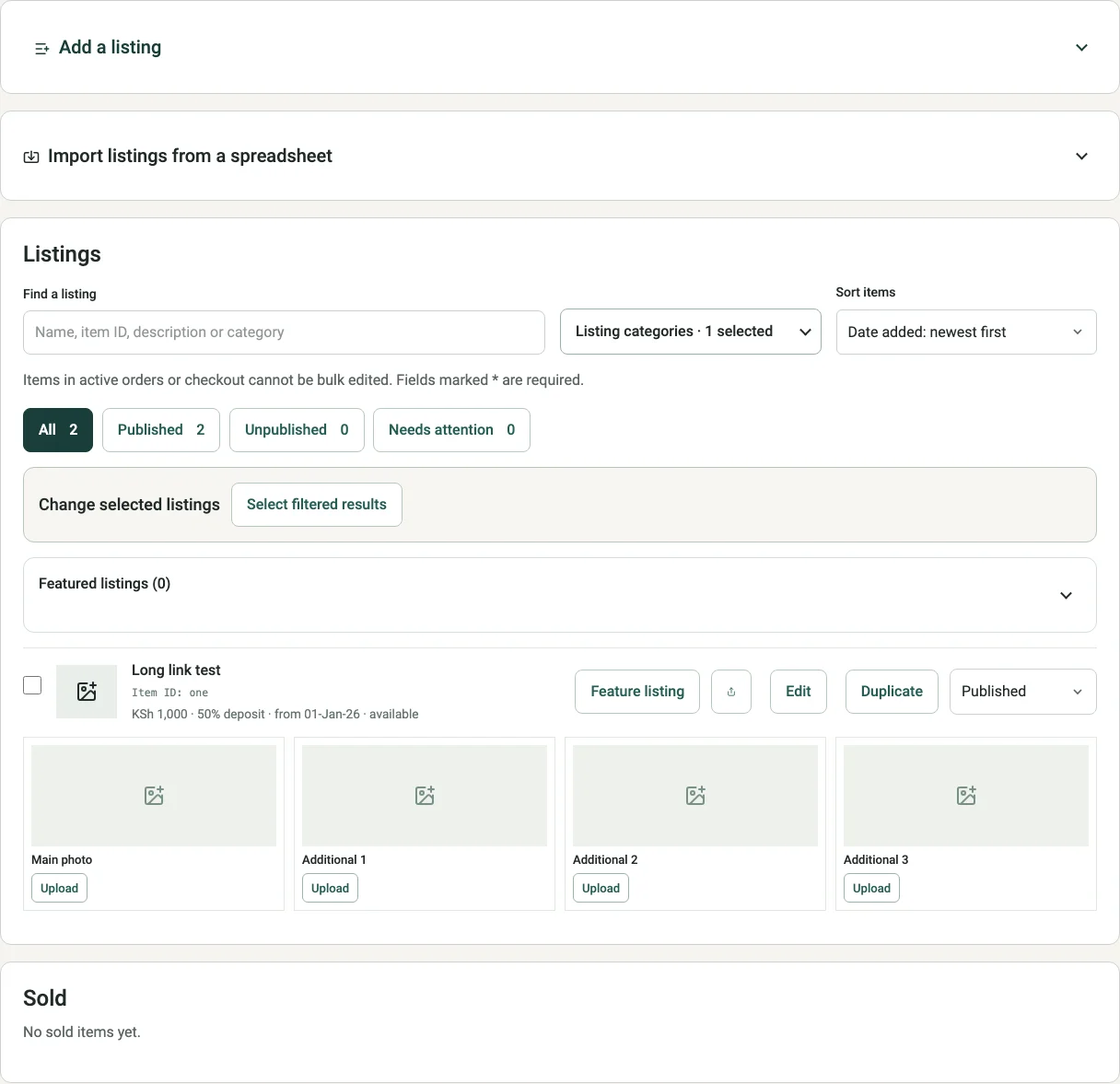
Demo data. Select the screenshot to open it at full size. Follow the labelled controls in the instructions below.
Open Manage Shop → Listings, or choose Listings in the Section dropdown on a narrow screen.
This guide covers finding listings, selecting groups, applying bulk changes and making copies. For a single listing’s fields, photos, editing and publication use the Item listing guide. For spreadsheet uploads use the CSV import guide.
1. Find the listings you need
Use Feature listing / Remove from featured, then Featured listings → Move up / Move down to arrange the default buyer catalogue. Search/category filters and explicitly chosen buyer sorts still apply. The Share item icon (a box with an upward arrow) uses a clean public permalink. Its accessible name and hover title are Share item. Featuring never publishes a hidden item. The green Load more listings button still adds 50 rows. Free items are skipped by percentage adjustments; edit their price explicitly to charge.
| Exact control | Type | Use |
|---|---|---|
| Find a listing | Search field | Search name, item ID, description or category. |
| Clear search | Button, shown when text is entered | Removes the search text. The category and status filters remain separate. |
| Listing categories | Expandable scrollable list | Select one or more categories. Selected choices are dark. Click again to remove a choice; All clears category filters only. Click outside or press Escape to close without changing choices. |
| Sort items | Dropdown | Choose date added newest/oldest, price low/high, available-from earliest/latest, or name A–Z/Z–A. |
| All | Filter button | Shows listings in this management view, subject to search/category. Sold items have their own section below. |
| Published / Unpublished | Filter buttons | Restrict the view to public listings or private drafts. |
| Needs attention | Filter button | Finds listings needing correction, such as those without valid collection dates. Read each explanation before editing. |
| Load more listings ([shown] of [total] shown) | Button, when needed | Loads another 50 listings into the view. |
Example: choose Furniture, then Unpublished, to review furniture drafts. If the item you expect is missing, clear the search and check both filters before creating another listing.
Changing search, category or status filters preserves listing selection. All clears that filter group, not the selected listings. Check the displayed selected count before making a change.
2. Select one item or a group
| Control | Type | What is selected |
|---|---|---|
| Select [item name] | Checkbox beside a listing row | That listing only. Untick it to remove it from the selection. |
| Select filtered results | Button | Eligible matches for the current search/category/status filters, including matches beyond the first 50 visible rows. |
| Clear selection | Button | Clears the selected group without changing any listing. |
Items already in an active order or another checkout cannot be bulk edited. A selection is not a reservation; eligibility is checked again when changes are applied. Bulk changes support up to 5,000 listings; deletion has a smaller limit explained below.
3. Choose the bulk action
In Change selected listings, use Action, a dropdown. This changes a group of listings, not an existing buyer’s order.
| Action option | Additional control | When to use it |
|---|---|---|
| Publish / Unpublish | No additional value field | Change visibility for a reviewed group. Publication requirements are covered in the listing guide. |
| Change category | **New category *** dropdown | Move a group to another existing shop category. Useful before deleting an empty category. |
| Change available-from date | **Available from *** date field | Set the same earliest collection date on selected items. |
| Change collection deadline | Collection deadline (clear to inherit shop deadline) date field | Set a shared item deadline, or clear it so items use the shop deadline. |
| Adjust prices by percentage | Direction dropdown: Decrease / Increase; **Percentage *** number field | Raise or lower selected public listing prices by the chosen percentage. |
| Delete eligible listings | No additional value field | Permanently remove eligible listings and their own photos. Limited to 250 per batch. |
For percentage changes, enter a positive number with at most two decimal places, such as 10 or 12.5, without a % sign. A decrease must be below 100%. Paid items must remain positive whole KSh; free items are skipped and explained in the preview; the preview shows the rounded amounts. Regular and any discounted price are both adjusted. Existing order amounts and agreed offer prices do not change.
Example: select three furniture listings, choose Adjust prices by percentage, Decrease, 10. A KSh 3,000 listing becomes KSh 2,700. To discount just one existing buyer’s order instead, use Items → Change the price agreed with this buyer.
4. Preview, check and apply
- Select Preview selected changes, a button. Nothing is applied yet.
- Read the selected count, proposed changes and any warnings. Exclude listing, a button beside a row, removes that item from the group; preview the updated selection before applying.
- If blocked listings are listed, resolve or exclude them. No change is applied while the selection contains blocked items.
- Tick I have reviewed this change for all [count] listings. For deletion the wording says permanent deletion.
- If publishing without photos, also tick Publish [count] listings without photos. Buyers will see No photo.
- Select Apply reviewed changes, a button, then read the result.
When publishing a whole-shop or filtered selection, unpublishable listings are excluded and explained in the preview. Explicit ticked selections and other actions stop on ineligible items until you resolve or exclude them. A large preview displays the first 50 affected items; the reviewed count covers the whole selection.
If the selection, records or settings changed after preview, make a fresh preview and confirm it again.
Before deleting
Deletion is permanent and limited to 250 listings per action. Any order history, offer record or active checkout prevents deletion. Unpublish historical listings instead. Review the actual selected group and permanent-deletion confirmation carefully; filtered selections can extend beyond the visible page.
5. Duplicate a similar item
Choose Duplicate, a button beside the source listing or in the Sold list. A copy is useful for several separate items with similar descriptions and prices.
| Exact control | Type | Meaning |
|---|---|---|
| Include existing photos (creates independent copies) | Checkbox | Tick to copy the source photos; leave unticked to add different photos later. |
| Create unpublished copy | Button | Creates a new, editable private listing with its own item ID. |
The copy starts Unpublished. Listing details are copied, including private item instructions, so check its name, dates, price, directions and photos before publishing. Orders, offers, checkout holds and sale history are not copied. Copied photos are independent of the original.
For editing and publishing the new copy, continue with the Item listing guide. For reviewing a Bagsied or Sold item’s order, use the Owner order tracking guide.
The always-visible Change selected listings group contains selection and bulk-change controls. Selected scope and exclusions still apply.
Version details: V1.2 guide. Exact source and test evidence are recorded in the release manifest; illustrations may predate minor layout changes.
V1.2 guide · Revised 12-Nov-26