DETAILED HELP
What if somebody else collects?
Last revised: 12-Nov-26
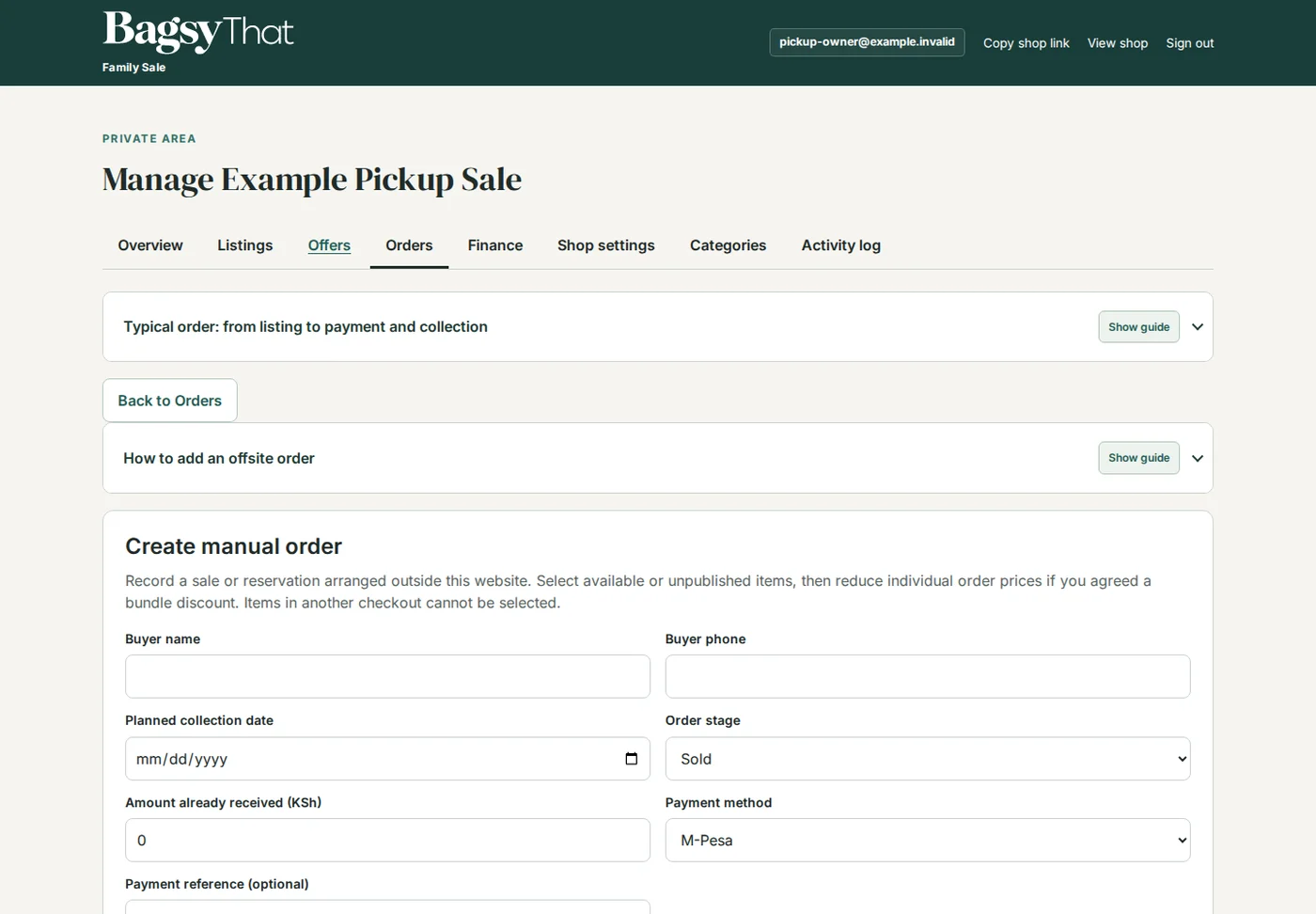
Demo data. Select the screenshot to open it at full size. Follow the labelled controls in the instructions below.
When would you use this? Use Create manual order when an order was placed outside BagsyThat and you want to track it here alongside your other orders. For example, a buyer agrees to buy your table by WhatsApp, over the phone or in person, without using the website checkout. A manual order lets you record that sale and keep track of the buyer, items, money received, outstanding balance and collection.
Open Manage Shop → Orders → Create manual order. On a narrow screen, choose Orders from Section first.
The items must already exist as listings. To create them first, use the Item listing or CSV import guide.
Do not create another manual order if the buyer already has an order for these items. Find the existing one in Orders and use the order guide.
1. Enter the buyer and agreement
Open Manage Shop → Orders → Create manual order. Existing offsite links still work. Kenya is the default phone format; enter + and the country code for international numbers. Free-only orders require no payment; record actual money and collection separately. Free with purchase rules are validated on the server.
| Exact control | Type | Required? | What to enter or choose |
|---|---|---|---|
| Buyer name | Text field | Yes | The buyer’s name, up to 100 characters. |
| Buyer phone | Telephone field | Yes | Their contact number, up to 40 characters. Check it with the buyer. |
| Planned collection date | Date field | Yes | The date you plan to use for this order. It must work for all selected items, unless you explicitly agree an override. |
| Order stage | Dropdown | A choice is always used | Sold for an accepted sale that does not need initial Bagsy review; Bagsied · awaiting review if you still need to review the reservation. |
| Amount already received (KSh) | Whole-number field | Yes | Actual money already received. Enter 0 if none; do not enter the full order total unless it has actually been paid. |
| Payment method | Dropdown | A choice is always used | M-Pesa, Bank transfer, Cash or Other. Select the method actually used. |
| Payment reference (optional) | Text field | No | Up to 120 characters. A supplied M-Pesa reference must be 8–20 letters/numbers; otherwise leave it blank. |
Sold does not mean paid in full or collected. It puts the sale into the reviewed order workflow. Any unpaid balance and outstanding collection are still tracked. The planned date is not automatically recorded as a confirmed collection agreement; do that in the order afterward.
2. Select the items
| Exact control | Type | What it does |
|---|---|---|
| Find an item | Search field | Search name, item ID, description or category. |
| Sort items | Dropdown | Date added newest/oldest; price low/high; available-from earliest/latest; name A–Z/Z–A. |
| Select [item name] | Checkbox on the item card | Adds or removes that item from this order. |
| Selected only ([count]) | Toggle button | Shows just the chosen items so you can review them together. Select again to return to the other results. |
| Clear item filters | Button, when filters are active | Clears search and Selected only. It does not remove the chosen items. |
| Previous items / Next items | Buttons, for multiple pages | Move through groups of 24 item cards. Selections and entered order prices remain as you search, sort or change pages. |
Choose up to 500 items. Both Published and Unpublished listings can be selected. An item marked In another checkout cannot be chosen. Items already reserved or sold through another order are not available for a new manual order.
Enter an agreed price for each selected item
Selecting an item reveals Order price (KSh), a required whole-number field. It starts at the current listed price. Enter an agreed amount from zero up to that listed price if you negotiated a reduction.
For example, select a KSh 3,000 chair and a KSh 2,000 table. If you agree a KSh 500 bundle discount, enter 2500 for the chair and leave the table at 2000. Order total becomes KSh 4,500. Entering these prices does not change the public listing prices.
3. Review the total, notes and collection date
Below the picker, check Order total. Notes (optional) is a multiline field, up to 5,000 characters, for background such as “Agreed by phone; brother will collect.”
If the date conflicts with the selected items or shop rules, the form explains the conflict and shows Override collection restrictions for this offsite order, a checkbox. Prefer an allowed date. Use the override only for an arrangement explicitly agreed with the buyer; the website asks for confirmation when creating the order.
Worked example: with the KSh 4,500 chair-and-table order above, the buyer has already paid KSh 2,500 cash. Set Amount already received (KSh) to 2500 and Payment method to Cash. The resulting order has KSh 2,000 still owing. Selecting Sold does not clear that balance.
4. Create the order, then use Orders
Select Create order, the button below the notes. The website rechecks item availability, prices, date and payment details. The shop must be open; a paused or ended sale does not accept new manual orders.
On success the form clears. Open Orders and find the new order by the buyer’s name or phone. Check it before entering the same transaction again if the result was uncertain.
- Sold: selected items are committed to this sale; follow the outstanding balance and collection steps.
- Bagsied · awaiting review: the order needs the initial confirmation or cancellation step.
- Any positive Amount already received is recorded as the initial payment. Recording it does not move money, and you should not record that same money a second time.
For everything after creation—confirming the Bagsy, agreeing the date, sending directions, recording payments/refunds, marking partial/full collection or cancellation—continue with the Owner order tracking guide. Share the buyer’s private tracking link using its Buyer contact section.
Free-item rules and existing orders
If a free-only manual order contains conditional free items, or exceeds either free-item cap, the form explains the rule. An authorised seller can explicitly confirm the free-policy exception before saving. Check that the buyer agreed.
To add items after a manual order is approved, follow Add items to this order in the Owner order tracking guide. The existing tracking link continues to show the updated order.
Version details: V1.2 guide. Exact source and test evidence are recorded in the release manifest; illustrations may predate minor layout changes.
V1.2 guide · Revised 12-Nov-26