DETAILED HELP
How do I import several listings?
Last revised: 12-Nov-26
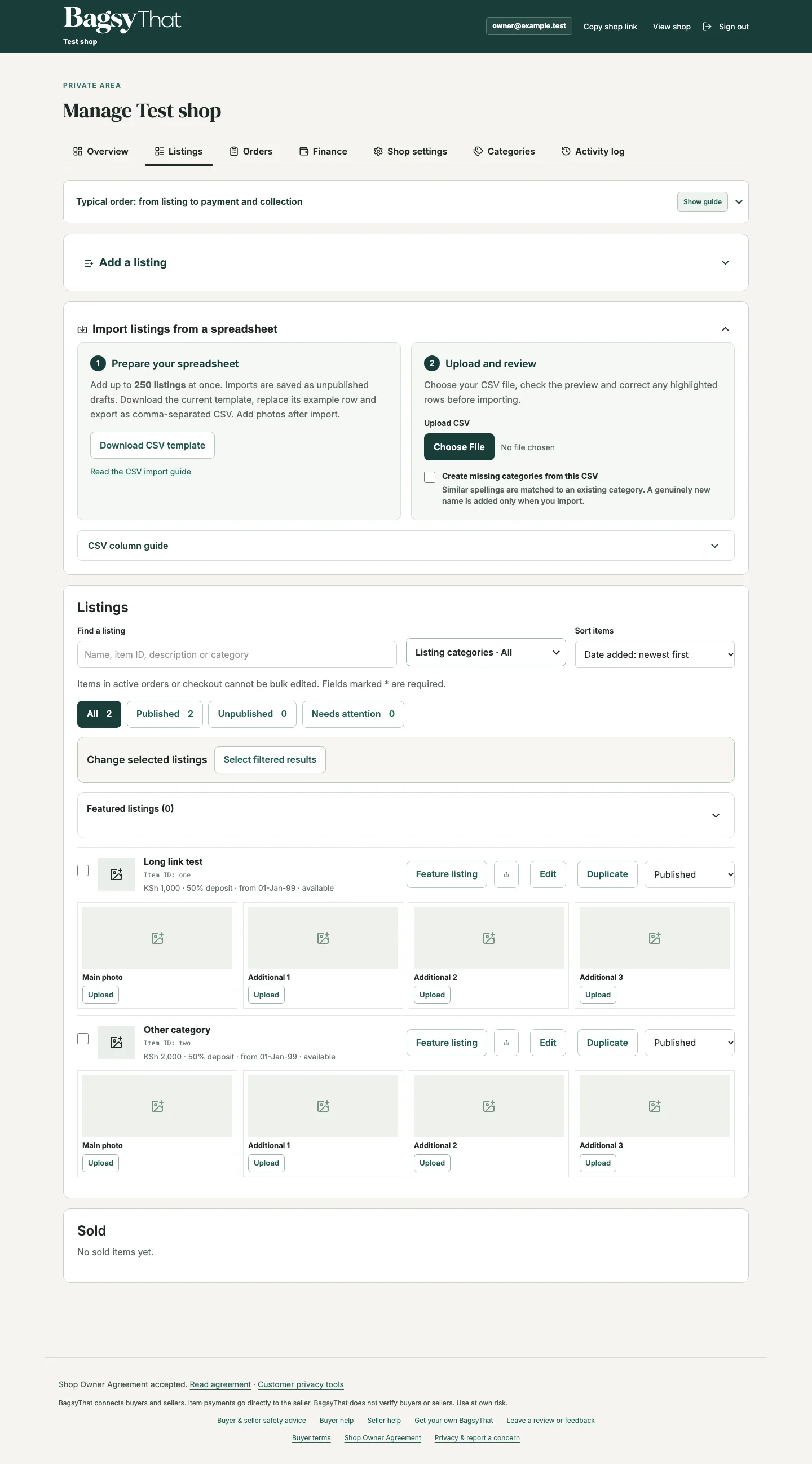
Demo data. Select the screenshot to open it at full size. Follow the labelled controls in the instructions below.
Use this guide to add several new listings from a spreadsheet. Each row creates one Unpublished draft. Importing does not publish items or update existing listings.
1. Open the importer
Recognised price formatting is converted automatically: 6,000 → 6000; 500,00 → 500; 500.00 → 500; 50,000 → 50000. Review highlighted original → converted cells. Non-zero cents need correction. Comma-containing CSV prices must remain quoted fields. Imports still create up to 250 unpublished drafts. A zero price is Free with deposit 0; the shop default may make new free listings conditional on a paid item.
Open Manage Shop → Listings. On a narrow screen, choose Listings in the Section dropdown. Open Import listings from a spreadsheet, an expandable panel.
| Exact control | Type | What it does |
|---|---|---|
| Download CSV template | Button | Downloads the current headings and an example row. Download a fresh copy when starting a new batch. |
| Upload CSV | File field | Opens the CSV you exported from your spreadsheet. Uploading creates a preview, not listings. |
| Create missing categories from this CSV | Checkbox | Allows genuinely new category names to be created when the import is submitted. Leave unticked to use existing categories only. |
| CSV column guide | Expandable help panel | Shows the column rules beside the importer. |
2. Fill in the spreadsheet
Select Download CSV template. Replace its example row. Keep the headings unchanged; do not add headings such as “photo” or “status”. Each row describes a separate item, so two different chairs need two rows.
| Column in the current template | Required? | What to enter | Example |
|---|---|---|---|
title |
Yes | Item name, 1–120 characters. Be specific enough to identify it. | Oak dining chair |
description |
No; the column can also be omitted | Up to 5,000 characters. Describe condition, dimensions and faults. Formatting markers such as **bold**, *italic* and bullet lines are supported. |
Solid oak, 90 cm high. Small scratch on seat. |
price |
Yes | Nonnegative whole KSh amount; 0 means Free. Recognised grouping/zero cents are converted and highlighted, for example a quoted CSV field "6,000" becomes 6000. No currency sign or non-zero cents. |
3000 |
category |
Yes | An existing category name; or a new name, up to 60 characters, with the create-categories checkbox selected. | Furniture |
deposit_percent |
Yes | Whole number from 0 to 100. Do not include %. |
50 means half the price is due at checkout. |
available_date |
Yes | A real date, preferably YYYY-MM-DD. DD-MM-YYYY is also accepted and converted. Availability years must be 2000–2100. |
2026-11-14 |
pickup_deadline |
No | Latest collection date for this item, on or after its available date. Blank uses the shop deadline, if there is one. | 2026-11-28 |
Deposit example: a KSh 3,000 chair with 50 requires KSh 1,500 at checkout. 0 means no deposit is required; 100 means the full price is due at checkout. A zero deposit does not make a paid item free. Enter a zero price only when you intend to give it away.
Date example: 2026-11-14 means 14 November 2026. Avoid ambiguous entries such as 11/14/26. The importer also recognises day/month/year with slashes, but the recommended format above is clearer. Item dates still have to leave valid collection days under the shop’s collection rules before publication.
Shop defaults do not replace CSV values. Photos, publication status and order/sale history cannot be imported.
3. Export as CSV
Use your spreadsheet application’s CSV / comma-separated export option, rather than saving an Excel workbook or a semicolon-separated file. The importer accepts up to 250 item rows and a file no larger than 1,000,000 bytes; keep it under 1 MB.
Here is one correctly formatted row using the current headings:
title,description,price,category,deposit_percent,available_date,pickup_deadline
Oak dining chair,"Solid oak, small scratch on seat",3000,Furniture,50,2026-11-14,2026-11-28
Descriptions containing commas or line breaks must be enclosed in double quotes. A double quote inside a quoted description is written twice, for example "A 24"" shelf". A normal spreadsheet CSV export usually handles this for you. Export real date values as the required text format; an Excel date serial number is not a valid date here.
4. Upload and check every row
Select the Upload CSV file field. The editable preview shows spreadsheet row numbers: row 2 is the first item because row 1 contains the headings.
Scroll the preview sideways to reach Validation, its final column. Valid rows show Ready. If a row has errors, correct them before importing. The screenshot demonstrates recognised price conversions; the examples below explain other validation messages.
Most preview cells are text fields; Category is a dropdown. The errors tell you which field to fix:
| What Validation says | What it means | How to correct it |
|---|---|---|
| Price: nonnegative whole KSh. | A recognised formatted value such as 3,000 is converted to 3000. |
Review the highlighted conversion. Correct currency signs, malformed grouping or non-zero cents; 0 means Free. |
| Deposit: whole percentage from 0 to 100. | For example, 150 is above 100%. |
Enter a whole percentage such as 50, without a % sign. |
| Availability: a real date in YYYY-MM-DD or DD-MM-YYYY format (2000–2100). | For example, 2026-02-30 is not a real date. |
Enter a real date such as 2026-11-14. |
| Ready | The row passes the importer’s checks. | Still review the details: a valid price or date could be the wrong one for your item. |
Other messages can flag an empty/overlong Name, an overlong Description, a Latest pickup before the available date, or a Category that cannot be matched. Correct the named field. For an unknown category, choose an existing one or deliberately enable Create missing categories from this CSV; for an ambiguous match, choose the intended category.
A row can show several errors at once. As you correct the cells, its Validation messages update. When the row is valid, they are replaced by Ready.
- Check each item name, price, deposit and date.
- Correct highlighted cells directly in the preview. For an invalid file structure, fix the spreadsheet and upload a new export before attempting import.
- Check category matching carefully. Similar spellings may match an existing category. A note can say Similar match, Matches existing or Will create. If a name matches more than one category, choose the intended one from the dropdown.
- Tick Create missing categories from this CSV only if you want new categories. The new categories are not created merely by ticking it.
5. Import, then publish separately
Select Import 1 unpublished drafts, or the same button with your actual row count. It is unavailable while any row is invalid. During processing its label becomes Importing…; after success it becomes Imported.
The success message states how many drafts were imported and lists any new categories. Review the items in Listings, add photos and publish when ready.
| Situation | What to do |
|---|---|
| You want to abandon an unsubmitted preview | Select Cancel import. No listings are created. |
| The result is uncertain, for example after a connection error | Select Retry import with the same locked rows. This reuses the batch and avoids duplicate listings. Do not start a fresh upload of the same batch while its outcome is unknown. |
| Import succeeded and the preview is still visible | Select Clear import preview. This does not delete the drafts. |
| A row needs editing after import | Edit the draft in Listings. Uploading a revised CSV creates new listings; it does not repair the earlier ones. |
Before finishing: check the imported count, review every draft and publish only the items you intend buyers to see.
Version details: V1.2 guide. Exact source and test evidence are recorded in the release manifest; illustrations may predate minor layout changes.
V1.2 guide · Revised 12-Nov-26