DETAILED HELP
How do I create one listing?
Last revised: 12-Nov-26
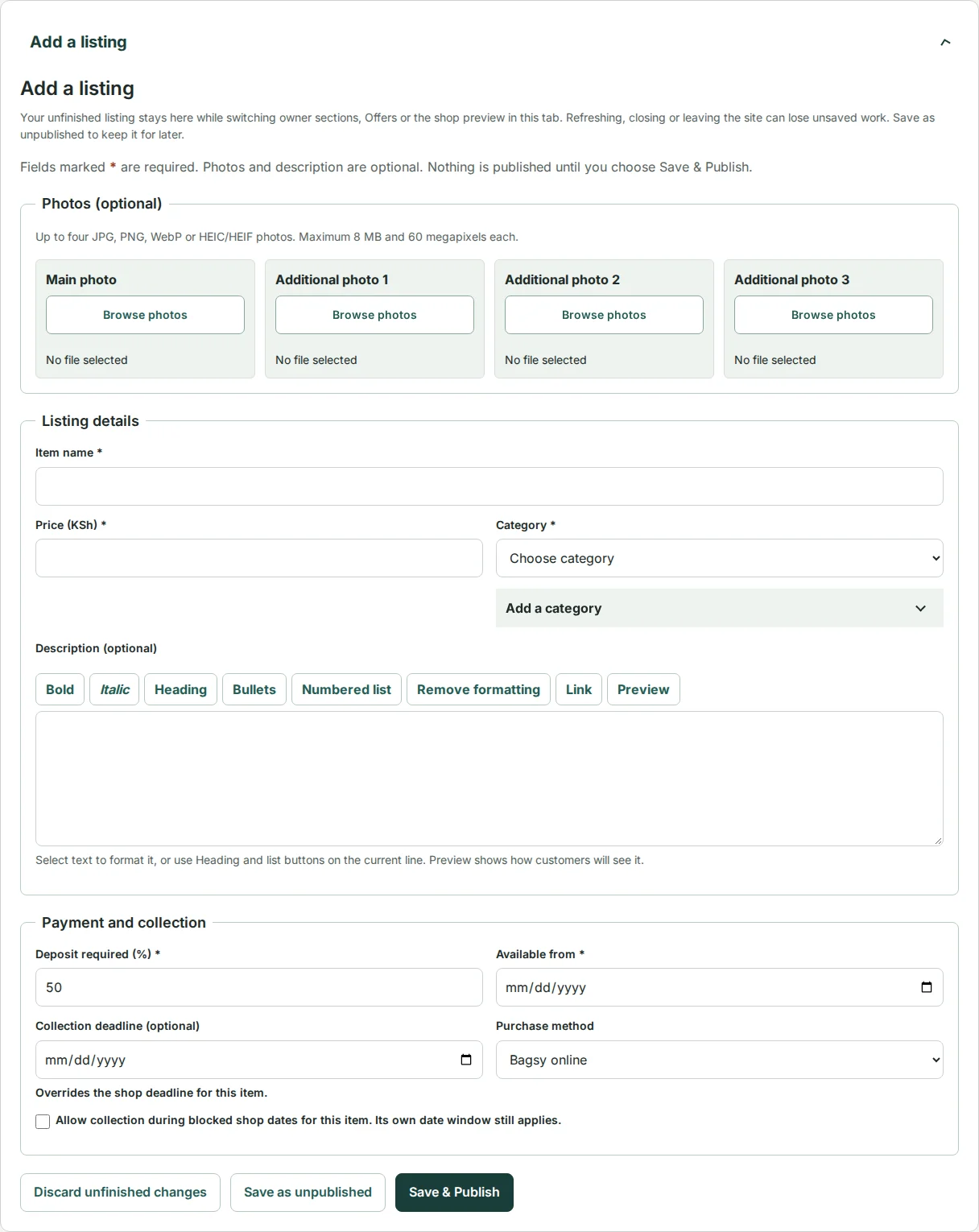
Demo data. Select the screenshot to open it at full size. Follow the labelled controls in the instructions below.
Use this guide to create one listing, understand each field, and choose whether to save a private draft or publish it.
Open Manage Shop → Listings → Add a listing. Add a listing is an expandable panel. On a narrow screen use the Section dropdown to reach Listings.
1. Photos (optional)
Browse photos is a file-picker control, repeated for Main photo and Additional photo 1, 2 and 3. The Main photo is the primary listing image.
You can add up to four JPG/JPEG, PNG, WebP, HEIC or HEIF images. Each must be no larger than 8 MB and 60 megapixels. For an iPhone Live Photo, use the still image, not the video.
Use the Main photo to show the whole item. Additional photos can show the back, a size label, or a scratch. Choose Remove selected photo to discard a newly selected picture before saving. If a HEIC preview is unavailable, it may appear after saving and processing.
Photos are optional. If you choose to publish without any, the website asks for confirmation and buyers see No photo.
2. Listing details
A zero price means Free and no deposit. For zero-price listings, Free with purchase requires a paid item in the same Bagsy. The shop default prefills new free listings; existing listings retain their own rules.
| Exact field or control | Type | Required? | Meaning and example |
|---|---|---|---|
| Item name * | Text field | Yes | 1–120 characters. Use “Oak dining chair” instead of “Chair” when several chairs are listed. |
| Price (KSh) * | Number field | Yes | Nonnegative whole KSh; 0 means Free. Enter 3000, not KSh 3,000 or 3000.50. |
| Category * | Dropdown | Yes | Choose the category that helps buyers find the item, such as Furniture. Options come from your shop’s actual categories. |
| Add a category | Expandable panel | Optional | Opens New category name, a text field up to 60 characters. Create and select category creates it and selects it for this listing. Use this when no existing category fits. |
| Description (optional) | Multiline text field | No | Up to 5,000 characters. Describe size, material, condition, included parts and known faults. Example: “Solid oak. Seat height 45 cm. Small scratch on the left side.” |
Description formatting controls
The middle column shows the characters you see in the Description (optional) field. The last column shows how the same text appears in Preview and on the buyer’s listing. Formatting markers remain visible while editing.
| Button | In the description field | On the listing | How to use it |
|---|---|---|---|
| Bold | **Solid oak** |
Solid oak | Select text, then choose Bold. |
| Italic | *Light wear* |
Light wear | Select text, then choose Italic. |
| Heading | ## Condition |
Condition |
Choose Heading on the line you want to turn into a heading. |
| Bullets | - Solid oak |
|
Put each point on its own line, then choose Bullets. |
| Numbered list | 1. Remove legs |
|
Select the lines and choose Numbered list for an ordered sequence. |
| Link | [Assembly instructions](https://example.com) |
Assembly instructions | Choose Link; fill in Link text and Website address, then choose Insert link. Use an http:// or https:// address. Cancel closes link entry. |
| Remove formatting | Solid oak after removing ** |
Solid oak | Choose Remove formatting to return the affected text to plain text. |
| Preview | The field is temporarily replaced by the formatted preview. | Shows the result before you save. | Choose Preview to check the appearance; Edit description returns to the field. |
3. Payment and collection
| Exact field or control | Type | Required? | Meaning and when to use it |
|---|---|---|---|
| Deposit required (%) * | Number field | Yes | Whole percentage, 0–100. For a KSh 3,000 chair, 50 means KSh 1,500 is due at checkout. 0 means no deposit is required; 100 means payment in full at checkout. |
| Available from * | Date field | Yes | Earliest collection date for this item. Use a later date if the item is still needed until moving day. This is collection availability, not a scheduled publication date. |
| Collection deadline (optional) | Date field | No | The last collection date for this item, on or after Available from. Overrides the shop deadline. Blank uses the shop deadline, if set. |
| Purchase method | Dropdown | A valid choice is always used; online is preselected | Bagsy online with M-Pesa uses website checkout. Contact owner to arrange sale asks buyers to arrange the sale directly instead. Use it for cars and other high-value items where viewing is required. An enquiry by itself is not a reservation. |
| Allow collection during blocked shop dates for this item. Its own date window still applies. | Checkbox | No | Leave unticked for normal shop rules. Tick only for an item that can be collected on otherwise blocked shop dates or weekdays. The item’s Available from and Collection deadline still apply. In Only these collection dates mode, the exception cannot open a date outside the shop’s permitted list. |
Shop defaults can prefill the deposit and dates. Check their actual values for each new item. An item must still have valid collection dates under the current shop rules before it can be published.
Example: you can release a sofa from 14 November, but it must leave by 20 November. Set Available from to 14 November and Collection deadline to 20 November. If the shop blocks Sundays and you have not made an exception, buyers must still choose another valid day in that window.
4. Save as a draft or publish
Unfinished listing fields and photos survive owner sections, Offers and shop preview in the same tab. A full refresh, leaving the site or closing the tab clears them. Use Save as unpublished to keep the listing permanently; Discard unfinished changes clears the in-memory form.
| Exact button | Result |
|---|---|
| Save as unpublished | Saves a private draft. Buyers cannot see or buy it. Useful while gathering photos or checking measurements. |
| Save & Publish | Saves and publishes the valid listing. Buyers can see it immediately. A confirmation is required if it has no photos. |
Keep the page open while the website is saving and processing photos. Read any validation message before retrying; a draft may have been retained after a partial failure.
After success, Add another item starts a fresh form. Finish returns you to listing management.
5. Change an existing listing
Find the item in Listings and choose Edit, a button. Ordinary listing editing is available for Published/available items and Unpublished drafts; items already in checkout or an order are managed through their order workflow.
The edit form uses **Regular price (KSh) *** for the original price and Discounted price (KSh), optional for a reduction. Enter a nonnegative whole-KSh discounted amount below the regular price, or leave blank for no sale price. For example, a KSh 3,000 chair reduced to KSh 2,500 keeps its original price and shows a discount. This is different from an order-only discount agreed with one buyer.
The edit form calls its optional deadline Item Deadline (Optional), and its checkbox Allow collection during blocked dates for this item. These have the same deadline/exception meanings described above. Item name, category, deposit, availability, purchase method and description work as explained for the new listing. Choose Save changes to save the listing edits. Private collection instructions have their own save button, described below.
Delete item is a separate button in the edit form. It is disabled if the listing has order history; unpublish that listing instead. Deletion is not needed to keep a draft private.
Private item directions are managed with Collection location for this item, a multiline field, and Save collection instructions, a button. Leave blank to use the shop instructions. An order-specific override takes priority over both. These directions are used in prepared collection messages and are not shown publicly.
Publication and photo controls after saving
| Control | Type | Use |
|---|---|---|
| Status for [item name] | Dropdown | Unpublished keeps a draft private. Published makes an eligible listing visible. Unpublishing retains the listing and photos. |
| Upload / Replace | File-picker controls beside each photo slot | Adds a photo or changes that particular slot. |
| Adjust | Button beside an existing photo | Repositions the subject within cropped thumbnails and shows the resulting thumbnail preview. The full-size photo is unchanged. A replacement resets the thumbnail position to the centre. |
| Remove | Button beside an existing photo | Removes that photo slot. |
If Needs attention appears, read its explanation and use Edit collection dates when offered. Do not assume a draft was published merely because its details were saved.
Before finishing: open the buyer-facing listing and check the title, current price, photos, purchase method and collection information.
Version details: V1.2 guide. Exact source and test evidence are recorded in the release manifest; illustrations may predate minor layout changes.
V1.2 guide · Revised 12-Nov-26