DETAILED HELP
How do collection windows and shop restrictions interact?
Last revised: 13-Nov-26
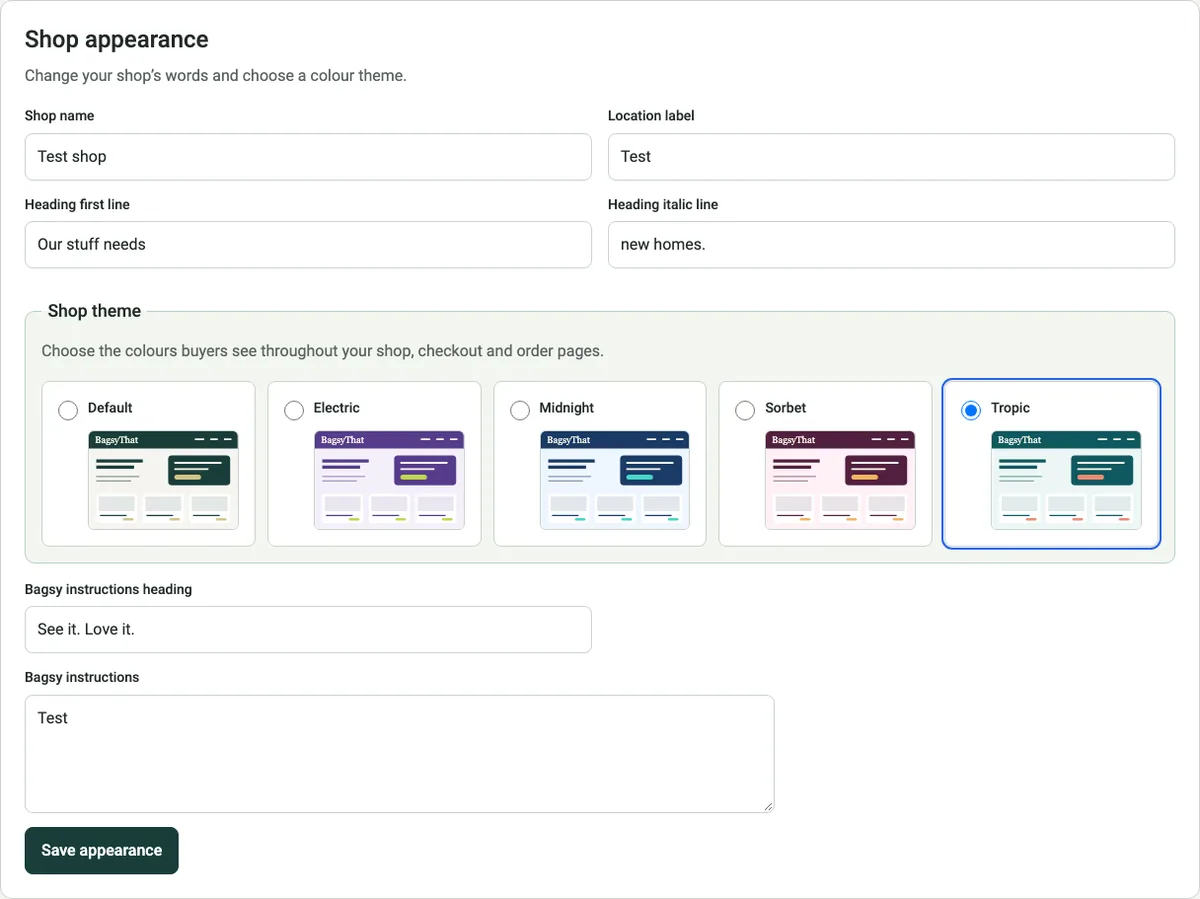
Demo data. Select the screenshot to open it at full size. Follow the labelled controls in the instructions below.
Open Manage Shop → Shop settings, or select Shop settings from Section on a narrow screen.
This tab has several independent groups. Use the save button for the group you changed. Collection availability has its own preview → review → apply process; editing a date or ticking a weekday does not save it immediately.
1. Shop appearance
| Exact field | Type | Required? | What it changes / example |
|---|---|---|---|
| Shop name | Text field | Yes | Public display name, up to 80 characters. Example: “The Patel family sale”. This is the display name, not a control for changing the shop’s web address. |
| Location label | Text field | Yes | Public general location, up to 100 characters. Example: “Kitisuru, Nairobi”. Use private collection directions below for the detailed pickup address. |
| Heading first line | Text field | Yes | First line of the shop’s main heading, up to 100 characters. Example: “Our stuff needs”. |
| Heading italic line | Text field | Yes | Emphasised second line, up to 100 characters. Example: “new homes.” |
| Shop theme | Named single-choice options with small homepage previews | Yes | Default, Electric, Midnight, Sorbet or Tropic. Each shows a small homepage mockup using its header, page and accent colours. The options sit in an inner Shop theme box; choose a radio option, then Save appearance. |
| Bagsy instructions heading | Text field | Yes | Heading above the public buying instructions, up to 100 characters. |
| Bagsy instructions | Multiline field | Yes | Public instructions, up to 1,000 characters. Explain the arrangements buyers should know before Bagsying. |
Select Save appearance, then open the buyer-facing shop to check the wording and selected theme. The theme follows buyers through browsing, checkout, order tracking, offers and collection. Existing custom colours are replaced by Default until you choose another theme. Your shop name, text, photos and operational settings are preserved. All themes currently use the same fonts. Dark mode is not part of this release.
2. Order questions and contacts
| Exact control | Type | Required? | Meaning |
|---|---|---|---|
| M-Pesa payment number | Telephone field | Yes | The number buyers pay. Check it carefully; it is not automatically verified as the correct receiving account. |
| Contact person | Text field | No | Name used for questions and collection, up to 120 characters. |
| WhatsApp questions number | Telephone field | Yes when using a separate number | Number buyers should contact. Disabled when the same-number checkbox is ticked. |
| Use the M-Pesa number for Questions and Coordination | Checkbox | No | Tick if the payment and questions numbers are the same. Untick to enter a separate WhatsApp number. |
| Save payment and contact details | Button | — | Saves this group. |
Example: payments go to the seller’s phone, but a family member handles viewing and collection. Untick the same-number checkbox, enter the family member’s contact number and save. Changing the questions number does not change where buyers send payment.
Set the shop’s default private directions
Under Private collection message template, enter the address, map link or directions in Shop collection location and directions, a multiline field up to 3,000 characters. Select Save collection instructions, a separate button.
This is the fallback for items without their own directions. It is not displayed on public listings and does not send a message. For how item/order overrides work and how to send the prepared message, see Collection Coordination in the order guide.
Sales contact privacy
Existing shops retain public contacts until their seller changes this setting. New shops start protected after buyer acknowledgement. Collection directions remain private.
Show sales contact details is a dropdown: After buyer terms acceptance or Publicly. Select Save contact visibility. View shop follows the saved choice even while you remain signed in. With After buyer terms acceptance, the buyer page shows Contact seller instead of the sales name/number; acknowledgement reveals them without creating an order. Public display asks you to confirm permission to publish the designated contact. Existing shops keep their old public contacts until changed; new shops start protected. Collection directions stay private; payment instructions are revealed after buyer acknowledgement separately.
3. Shop availability: pause, end or reopen the sale
The Current state label shows Open, Temporarily paused or Sale ended. The available buttons depend on that state. Each change asks for confirmation and is saved when confirmed; it does not use the collection-rule preview.
| Button | Result | When you might use it |
|---|---|---|
| Pause shop | Keeps listings visible but stops ordinary new purchases and new manual orders. | You are away briefly and cannot handle new sales. |
| Close sale | Hides the public catalogue, without changing each listing’s publication status. | You have finished the sale for now. |
| Resume shop | Resumes an open sale from its paused state. | You are ready to take new purchases again. |
| Reopen sale | Shows the Published listings again and resumes ordinary purchases, subject to collection dates. | You want to restart a sale you closed. |
Important exception: valid accepted-offer links can still complete checkout while the shop is paused or the sale is closed. Existing orders and private tracking links also remain accessible. Pausing/closing does not cancel them. The offer workflow is explained in the Offers guide.
4. Collection availability
Choose Block specific dates or Allow only selected dates. Mark individual dates or inclusive ranges; select a marked date again to remove it. Selected-date mode ignores the retained ordinary blocked weekdays and blackout rules. A legacy item override cannot open dates outside that selected list.
Dates use Nairobi time. These are shop-wide collection rules, not appointments for individual orders.
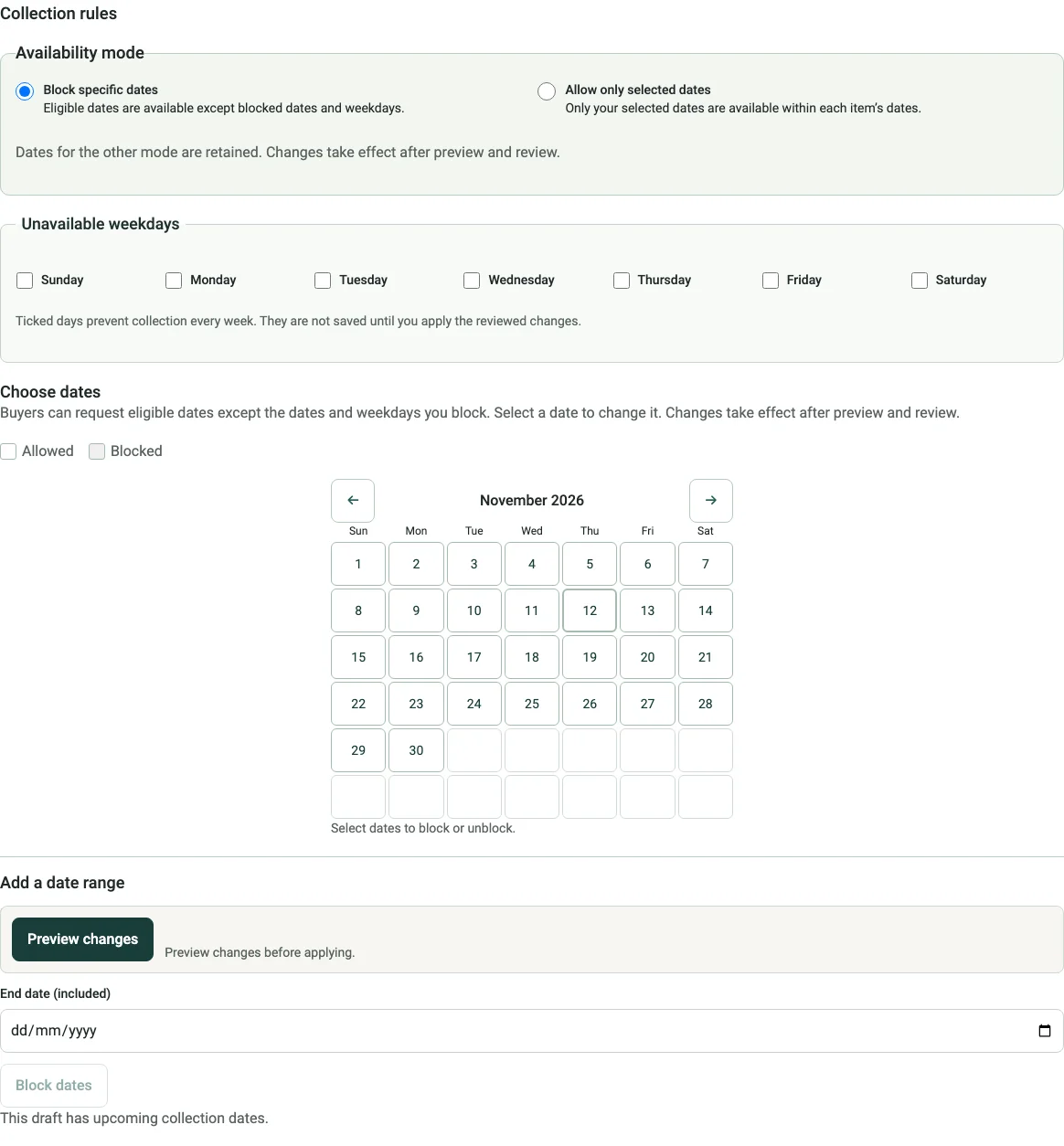
Availability mode has Block specific dates and Allow only selected dates. The visual calendar lets you tap a day to add or remove it from the unsaved proposal. White dates are allowed and shaded dates are blocked. An empty selected-date list blocks every date. In selected-date mode, use Start date, End date (included) and Allow dates to add an inclusive range. Tap an allowed day on the calendar to remove it from the proposal. Dates outside the permitted list cannot be opened by legacy item exceptions. Regular weekdays/blackouts are retained for switching back and do not apply in selected-date mode.
In regular mode, shaded days are blocked. Tap to block/unblock, or add a range with Block dates. Removing a day within a range splits it if needed. Neither calendar edits nor range buttons save the rules; preview, review and apply below. Existing blocked periods appear immediately; unblocking one date preserves its other dates and private notes. Weekday controls are at the top: untick a blocked weekday there to permit it. Preview and Apply stay visible, and editing the proposal invalidates its previous preview.
| Exact control | Type | What to enter or choose |
|---|---|---|
| Latest collection date | Optional date field | Last collection date for items without their own deadline. Clear it for no shop-wide deadline. |
| Sunday through Saturday, under Unavailable weekdays | Checkboxes | Tick each weekday on which collections cannot normally take place. A ticked Sunday blocks Sundays every week. |
| Start date | Calendar range date field | First day to block or allow in the current mode. |
| End date (included) | Calendar range date field | Last day, included. Then choose Block dates or Allow dates. Same start/end selects one day. |
| Preview changes | Button | Checks the proposed rules against current listings and orders. It does not apply them. |
An item’s own Collection deadline replaces the shop deadline for that item. In regular mode, a deliberate item exception can bypass blocked shop weekdays/blackouts, while its Available from and Collection deadline still apply. Those item controls are explained in the Item listing guide.
Review and apply the rules
- Choose the availability mode, then enter the permitted dates or regular blocked dates/deadline.
- Select Preview changes.
- Read Review before applying, including both the affected listings and existing order conflicts.
- Resolve listing dates or explicitly approve unpublishing the affected listings, as described below.
- Select Apply reviewed changes, a button, and check the result. The preview action becomes the apply action after review; no extra review checkbox is needed.
| Preview section/control | Type | Meaning / next action |
|---|---|---|
| Published listings with no valid collection dates | Results list | Only listings losing all valid collection dates appear here. A listing that retains some valid dates is not included in this list. |
| Edit listing dates | Link styled as a button | Opens the affected listing’s date editor. Change **Available from *** and/or Collection deadline (optional), then choose Save collection dates. Cancel closes it. Only that listing’s dates are saved; your proposed shop rules still need review and apply. |
| Unpublish the listed items with no collection dates. Items in checkout or orders must be resolved separately. | Checkbox, when needed | Tick only if you want those listings made private as part of applying the rules. Resolve their dates instead if they should stay public. |
| Existing order collection conflicts | Results list | Orders whose recorded dates conflict with the proposal. Applying shop rules does not change those orders or notify the buyers. |
| Manage order | Link styled as a button | Opens the affected order. Agree any change with the buyer and follow the order guide. |
Example: you add a blackout from 20 to 21 November. A listing available only on those two days loses every collection date; extend its date window or explicitly unpublish it. An existing order for 20 November remains in place until you agree and record a different arrangement with that buyer.
If anything changes during review, or the save message asks for a fresh preview, select Preview changes again and review the current results. An affected item in an active checkout/order may need separate resolution before the settings can be applied.
5. Listing defaults (optional)
| Exact field | Type | What it prefills |
|---|---|---|
| Deposit (%) | Optional number field | Deposit percentage for new listings, from 0 to 100. |
| Available from | Optional date field | New listings’ earliest collection date. |
| Collection deadline | Optional date field | New listings’ item deadline. If both dates are set, the deadline must be on or after Available from. |
Select Save defaults, a button. These fields prefill new listings only; they do not update existing listings or replace CSV values. Clear a default to return to the form’s normal behaviour, and still check each new listing before saving it. Individual field meanings are in the Item listing guide.
6. Shop options
Free item rules
Set separate optional limits for ordinary-free and free-with-purchase items. The default for newly created zero-price listings does not rewrite existing listings.
Ordinary free items per checkout (optional) and Free-with-purchase items per checkout (optional) each accept 1–30, or blank for unlimited. Default new free listings to Free with purchase prefills newly created free listings and zero-price imports; it does not change existing listings/orders. Select Save free item rules. Conditional free items require a paid item in the same Bagsy and follow their separate optional cap. An ordinary-free cap is per checkout, not per person; it does not prevent repeat orders.
Buyer offers: the Allow buyers to make offers checkbox is covered in the Offers guide → switching offers on or off, including what happens to existing offers.
Show Share shop button on the public store is a checkbox. Tick to show buyers a sharing button, or untick to hide that button. It saves when changed and has no separate save button. Hiding a sharing button does not make the public shop private or prevent someone copying its web address.
7. User preferences
Email notifications
There are two levels of control in this group:
| Exact control | Type | Scope |
|---|---|---|
| Send email for this shop | Checkbox | Shop-wide: controls shop emails to buyers and administrators, including buyers’ private order-link and saved order-update emails. |
| A buyer submits a Bagsy | Checkbox | Notify this signed-in administrator of a new Bagsy. |
| A buyer makes an offer | Checkbox | Notify this administrator of a new offer. |
| A buyer accepts a counteroffer | Checkbox | Notify this administrator when a buyer agrees to a counteroffer. |
| A buyer withdraws an offer | Checkbox | Notify this administrator of a withdrawal. |
| Save email preferences | Button | Applies the shop-wide switch and this administrator’s choices. |
Turning the shop-wide checkbox off asks for confirmation. You must still choose Save email preferences to apply the change. The individual notification choices are unavailable while email is off. Another administrator’s personal choices are separate from yours, but the shop-wide switch affects everyone.
Switching email on again does not send missed messages retrospectively. Save private buyer links rather than assuming an email has been delivered. This group does not replace direct collection communication.
Change your password
Choose Change password, a button, to open the account-security page.
Enter the required Current password, New password and Confirm new password fields. The new password must have at least 14 characters, differ from the current one, and match its confirmation. Show passwords / Hide passwords is a visibility button. Select Change password to save. This changes your signed-in account’s password, not another administrator’s account.
Optional seller Finance
Under Site management, Show Finance in my seller area is off by default and applies to all shop administrators. Enabling adds the private Finance tab. Disabling preserves order/payment records. See the Finance guide for figures and limitations.
Reviews, private feedback and suggestions
Use the public Reviews page to submit an experience for approval. Private feedback and feature suggestions are submitted from the same page. Reviews require explicit approval. Existing legacy reviews remain manageable at the existing review-management address. Leave private contact details, buyer information and payment references out of public reviews.
Permission, approval and withdrawal
Tick the optional publication-permission checkbox, then Submit for approval. Nothing becomes public before platform approval. The public submission form is available to everyone. Contact the BagsyThat team to request removal of a public submission. Existing family reviews retain their management address, where authorised shop administrators can view or withdraw them. Use the single public submission page for a new review. Withdraw review removes it from the public page and clears its text and attribution in the review record. Refresh reloads its status. Review permission is separate from the shop service agreements.
Save payment and contact details belongs to its payment/contact field group. Public and protected contact modes use the same contact controls; the saved visibility choice determines whether acknowledgement is required first.
Settings layout
Contact Details groups payment and questions contacts. Sales contact privacy controls disclosure; review and save a legacy shop’s contact choice before relying on it. Private collection message template stays private until you share directions with a buyer. Free item rules, Site management, Account security and Email notifications use labelled shaded groups. Site management contains Finance, buyer offers and sharing.
Collection availability groups the availability mode and weekday choices above the calendar. Block specific dates makes otherwise eligible dates available except blocked dates and weekdays. Allow only selected dates limits collection to the chosen dates within item windows. Each mode retains its own dates. Use the calendar, then Preview changes, review conflicts and Apply reviewed changes. Existing orders are not silently changed. Textual date ranges use DD-MMM-YY and “to”; native date fields follow your browser.
Buyer offers validity and access
Buyer offers has its own shaded box beside Free item rules. Choose Allow buyers to make offers and set Offer response validity (days) from 1–30, default 3. Save offer validity applies to new proposals/counteroffers, not existing expiry dates. Acceptance always starts a fresh fixed24-hour checkout window. Turning new offers off declines pending/countered offers; accepted offers retain their checkout window and existing records stay accessible. Finance and Sharing remain in Site management.
Version details: V1.2 guide. Exact source and test evidence are recorded in the release manifest; illustrations may predate minor layout changes.
V1.2 guide · Revised 13-Nov-26