DETAILED HELP
What if the collector's name changes?
Last revised: 13-Nov-26
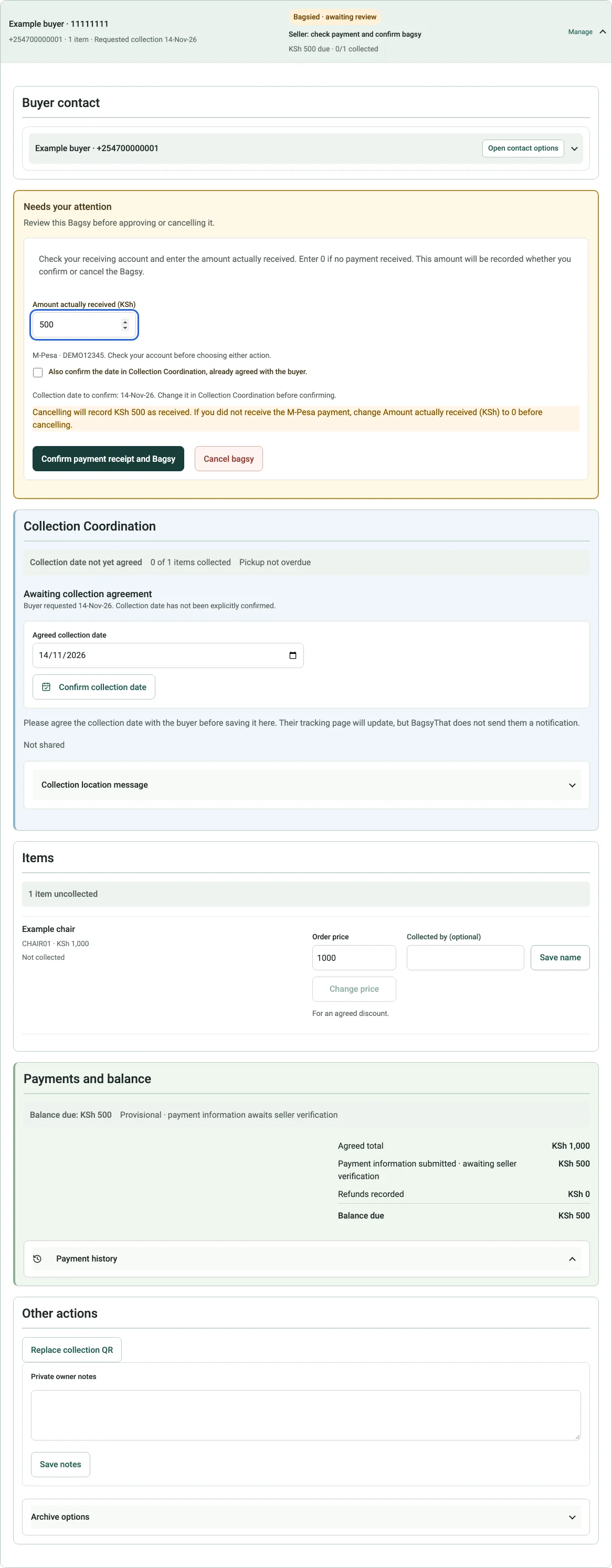
Demo data. Select the screenshot to open it at full size. Follow the labelled controls in the instructions below.
Open Manage Shop → Orders. Search by buyer, phone, order number or item in Find an order, then select Manage on the matching order. On a narrow screen, choose Orders from the Section dropdown.
Start by confirming the Bagsy. After that, use the five sections already on the order screen:
| Order section | Use it to… |
|---|---|
| 1. Buyer contact | Contact the buyer, correct their number or share their private tracking link. |
| 2. Collection Coordination | Agree the date and send the correct collection directions. |
| 3. Items | Record full/partial collection, change an agreed price or cancel an item. |
| 4. Payments and balance | Record money received/refunded and check what is still owed. |
| 5. Other actions | Save private notes or archive a settled order. |
Find an order and use filters
| Exact control | Type | How to use it |
|---|---|---|
| Find an order | Search field | Search by buyer, phone, order number or item. Clear the search text to see other orders again. |
| Sort orders by | Dropdown | Seller action first, Collection date, Status, Order date, Buyer name, Buyer phone number, Number of items, or Order value. |
| Direction | Dropdown | Ascending or Descending. For dates, ascending generally puts earlier dates first; descending puts later dates first. |
| Manage | Order expansion control | Opens the chosen order. The summary also shows its status, next action, balance and collected count. |
Filter options
These are filter controls above the order list. Their counts apply to the current search. A filter changes what you see; it does not change an order.
| Filter | What it includes |
|---|---|
| All | All non-archived orders matching the search. |
| Seller action | Orders needing seller work, such as payment review, a refund or collection agreement. |
| Buyer action | Orders whose next recorded action belongs to the buyer, such as paying a balance or collecting. |
| Completed | Paid and fully collected orders with a zero balance. |
| Cancelled | Orders cancelled in full, including those with no active items left. Check for any refund still due. |
| Collection agreement pending | Reviewed orders with outstanding items and no explicitly confirmed collection date. |
| All outstanding collections | Reviewed, non-cancelled orders with uncollected active items. |
| Overdue collections | Outstanding collections whose requested/planned date has passed. Check whether a date was actually agreed before assuming the buyer missed it. |
| Bagsied · review | Orders awaiting the seller’s initial review. |
| Balance due | Reviewed orders with money still owing. They can include orders whose items have already been handed over. |
| Awaiting collection | Reviewed orders with no positive balance and at least one uncollected active item. A refund may still need attention if the balance is negative. |
| Archived | Archived orders, hidden from the ordinary filters. |
If an order seems missing, check both the search and the selected filter, including Archived.
First: confirm or cancel the Bagsy
The Needs your attention panel appears directly below Buyer contact for a pending Bagsy.
For free-only Bagsys: there is no Amount actually received field. Use Approve Bagsy after reviewing the items, or Cancel bagsy to reject it. No deposit or payment is required. The paid-order steps below apply when payment details are present.
- Check the receiving M-Pesa account or other receiving account. The buyer’s typed code alone is not payment verification.
- In Amount actually received (KSh), a required whole-number field, enter the amount you actually received. Enter
0if nothing was received or due. - To accept the order, choose Confirm payment receipt and Bagsy, a button.
- To reject the pending order, first check and correct Amount actually received (KSh). Enter the amount you actually received, or
0if you received nothing. Then choose Cancel bagsy, a button. Cancellation saves whatever amount is currently in that field; it does not automatically change it to zero or verify the payment. If you leave a prefilled or incorrect amount unchanged, that amount will be recorded as received. Any money that must be returned still needs to be refunded outside the website and recorded afterward.
The optional checkbox Also confirm the date in Collection Coordination, already agreed with the buyer. records collection agreement at the same time. Tick it only after speaking with the buyer and checking the date shown below it. Change the date in Collection Coordination first if necessary.
Confirming a Bagsy and agreeing a collection date are separate decisions. Leaving this checkbox unticked does not cancel the order; you can agree collection afterward.
1. Buyer contact
Open Buyer contact, then Open contact options, an expandable panel.
| Exact control | Type | Purpose |
|---|---|---|
| Open WhatsApp | Link | Opens a prepared conversation. Review and send in WhatsApp yourself. |
| Copy number | Button | Copies the buyer’s number for another agreed contact method. |
| Correct phone number | Button | Opens Correct buyer phone number, a required telephone field, and Save phone number / Cancel buttons. Saving changes phone-based order lookup; the private tracking link stays the same. |
| Buyer privacy | Link | Opens privacy tools for this buyer/order. |
| View order tracking | Link | Opens the buyer-facing tracking page. |
| Copy Tracking Link | Button | Copies the private link. Share it only with the buyer. If automatic copying fails, copy from the displayed Private buyer tracking link field. |
Review a buyer’s later payment
When a buyer submits balance or advance-payment details, the order shows Payment reported — seller verification needed. It also appears under Awaiting seller review and Overview Needs attention. Open the order’s Payments and balance section; the seller does not need to open Collection handover first.
Check the receiving account and select Verify buyer payment. Correct the actual amount, method or reference only with a reason. Reject report requires a reason and records no money. Link existing payment appears only for a unique matching M-Pesa receipt already on that order; linking adds no receipt or credit twice. While a report is pending, review it here rather than using the separate manual-payment form.
Verification updates recorded payment and the buyer’s balance independently of collection. It does not change item prices, mark goods collected, reserve credit for a pickup, or require an open handover session. Any extra advance remains subject to the existing protected-deposit/credit rules at later pickup. Matching payment approval sends no notification email; correction/rejection notices follow the buyer’s existing preferences.
2. Collection Coordination
Collection location message has three groups: Collection location; Review and send; Record as shared. Save location edits before recording sharing. Opening WhatsApp or copying a message does not send it or mark it delivered.
Use this section to agree collection and make sure the buyer has the right directions. Saving a date or preparing a message does not contact the buyer for you.
Agree and save the date
- Agree the date, time and location directly with the buyer.
- Enter the date in Agreed collection date, a required date field.
- Select Confirm collection date, a button, and confirm the prompt.
Requested collection is the buyer’s suggestion. Planned collection is not yet confirmed as agreed. Collection date agreed means you have recorded the date agreed with the buyer. The buyer’s tracking page updates when you save; an opted-in buyer can receive a date notification when shop emails are enabled. Private directions are not included.
If the date conflicts with shop rules, Override collection restrictions (confirm with buyer first). appears as a checkbox. Use it only for an exception already agreed with the buyer. After all active items are collected, the Actual collection date field also appears; correct it if necessary and save with Confirm collection date. It cannot be a future date.
Prepare and send the location message
Open Collection location message, an expandable panel.
| Control | Type | What to do |
|---|---|---|
| Change the location for this order (optional) | Expandable panel | Open if this whole order needs different directions. |
| Order collection location and directions | Multiline field | Enter directions for every item in this order, or leave blank to use each item’s instructions and then the shop default. |
| Save order collection instructions | Button | Save an override before sending. Clear the field and save to remove the override. |
| Review your collection message | Multiline field | Check the buyer, date, items and directions. You can edit this outgoing draft; doing so does not change saved location instructions. |
| Reset prepared message | Button | Discard draft-message edits and rebuild it from current order details and instructions. |
| Open WhatsApp | Link | Open the prepared message, then review and send it yourself in WhatsApp. |
| Copy message / Copy number | Buttons | Use an agreed alternative such as SMS, email or a phone call. |
| Mark collection details shared | Button, shown after date agreement | Select only after actually sharing the current details. This records your confirmation; it does not send or verify delivery. |
| Clear sharing confirmation | Button, shown once marked shared | Clear the current confirmation if needed; the earlier record is retained. |
Which directions are used? An order override wins for every item. Without one, the message uses each item’s private instructions, falling back to the shop default. Items with different locations are grouped separately. Cancelled and already collected items are left out.
Example: save “Collect from the workshop entrance”, review the prepared message, send it in WhatsApp and check the buyer received it. Return here and select Mark collection details shared. Opening WhatsApp or copying the text alone does not mean it was shared.
If the number, date or instructions change, send the updated details and mark them shared again. A reminder may appear when agreed collection is tomorrow. For WhatsApp, keep the prepared message to 10,000 characters or fewer, or copy it for another channel.
3. Items
Add items to an existing order
- Approve a pending Bagsy first. Open Items on the approved order and choose Add items to this order.
- Search published or unpublished items, select the items and check their agreed prices. The current asking price is the starting point and the upper limit.
- Choose Review addition. Check the new total and balance, the offers that will close, and any collection conflicts. Override a conflict only after agreeing the arrangement with the buyer.
- Tick I’ve agreed these items, prices and collection with the buyer, choose any optional emails and select Confirm addition. The items are marked sold. Share the existing private tracking link so the buyer can see the dated additions.
Use this section when handing items over, agreeing a discount or removing an item from the order. Only items still in the order count towards its total and outstanding collection.
Hand over items
Open Collection at the top of the order status bar, or use Scan collection QR on Collection handover. Select the goods for this visit, review payment and confirm physical handover. Follow the Collection buyer and seller guide for the payment, credit allocation and partial-handover steps. A QR code or an agreed date does not prove payment or collection.
Change the price agreed with this buyer
Use this when you and the buyer agree a different price after the order has been placed. For example:
- You agree a bundle discount because the buyer is taking the chair and table together.
- The buyer notices a scratch during viewing and you agree to reduce that item’s price.
- You agree a goodwill reduction to settle an issue while keeping the item in the order.
Enter the new amount in Order price, a required whole-number field, then select Change price, a button. The amount can be zero up to the item’s recorded list price. Enter the new item price, not the amount of the discount.
Example: the chair’s order price is KSh 3,000. You agree KSh 500 off, so enter 2500 and select Change price. The order total falls by KSh 500. The public listing price is not changed by this control.
Check Payments and balance afterward. If the buyer already paid in full, the reduction may create a refund due. Return the money separately, then record the refund in section 4. If an item is no longer being sold at all, use Cancel item rather than reducing its price to zero.
Cancel an item
If cancellation or repricing removes the last paid item, explicitly allow any remaining Free with purchase items to stay. This exception is recorded; it does not change the money already received or refunded.
Choose Cancel item, a button on the relevant row. It opens Cancel sale for that item.
| Control | Type | What to enter or choose |
|---|---|---|
| Reason | Required multiline field | Why the item is being cancelled, up to 1,000 characters. Example: “Buyer no longer needs the table.” |
| Refund amount recorded (KSh) | Required number field | The amount already refunded for this cancellation. Enter 0 if nothing has been returned yet. |
| Move item to | Dropdown | Unpublished keeps it private for review. Available for sale returns it to buyers, subject to validation. |
| Cancel sale and move item | Button | Saves the cancellation, any recorded refund and the chosen destination. It does not send money. |
The row remains visible as Cancelled for history, but no longer counts towards this order’s active total or remaining collection. Check Payments and balance for the revised amount due or refund owed. Do not record the same refund again in Payments.
Example: the chair and table total KSh 5,000; KSh 2,500 has been paid. Cancel the KSh 2,000 table with no refund yet. The chair remains at KSh 3,000, leaving KSh 500 to pay. An item cancellation does not automatically mean refunding the whole deposit.
Cancel a whole reviewed order: cancel each remaining active item in turn, checking its destination and any actual refund. When none remain, the order displays Cancelled. For a Bagsy still awaiting initial review, use Cancel bagsy in the first panel instead.
For the separate buyer and seller handover screens, including QR scanning, item selection and balance reporting, follow the Collection guide.
4. Payments and balance
Use this section to check what is owed and record money that has actually changed hands. Recording an entry does not transfer money.
| Amount shown | Meaning |
|---|---|
| Agreed total | The current prices of the items still in this order. |
| Refunds recorded | Money already recorded as returned to the buyer. |
| Balance due | Money the buyer still needs to pay. |
| Refund due | Money you need to return because recorded net payment is above the current total. |
Record a payment
- Check Payment history, an expandable panel, to avoid recording the same money twice.
- In Record, a dropdown, choose Payment received.
- In Amount (KSh), a required number field, enter the positive whole-KSh amount just received. Use remaining balance, a button, fills the full outstanding amount if appropriate.
- Choose M-Pesa, Bank transfer, Cash or Other in the Method dropdown.
- Add Reference (optional), a text field, if useful. For M-Pesa, a supplied reference must be 8–20 letters/numbers; otherwise leave it blank.
- Select Record payment, a button, and check the updated history and balance.
Example: KSh 2,500 is already recorded. The buyer now sends KSh 1,000. Enter 1000, not 3500.
Record a refund
Return the agreed money outside the website first. Then choose Refund paid in Record, enter the amount, choose the method and select Record refund. Do not record it here if you already included it in the item’s cancellation form.
A refund cannot exceed the net money recorded as received. A cancelled order can still have refunds recorded, but cannot have a new payment added through this workflow.
The form appears after initial Bagsy review and remains visible if you collapse Payment history. If a save is uncertain, keep the same details, retry and check history before adding a different entry. There is no direct edit/delete button for an existing payment entry on this screen.
What does the order status mean?
| Status | Meaning / next step |
|---|---|
| Bagsied · awaiting review | Review the actual payment and confirm or cancel using the first panel. |
| Balance due | The order has been reviewed, but money is still owed. It may show this even if all items were collected. |
| Awaiting collection | No further payment is due and at least one item is uncollected. Check any refund due separately. |
| Collected | All active items are marked collected and there is no positive balance. Check for any refund due separately. |
| Cancelled | The order, or all its items, has been cancelled. No collection remains on this order; a refund may still be due. |
The status updates from the recorded payment, cancellation and collection information; you do not choose it from a status dropdown. Paid in full and all items collected describe separate things.
5. Other actions (notes and archiving)
| Exact control | Type | Use |
|---|---|---|
| Private owner notes | Multiline field | Up to 5,000 characters. Example: “Brother collecting; check name before handover.” |
| Save notes | Button | Saves the private note. It does not send it to the buyer. |
| Archive options | Expandable panel | Opens the order’s archive tools. |
| Archive order | Button | Available only for a collected or cancelled order with zero balance. Hides it from the ordinary list; tracking and history remain. |
| Restore archived order | Button | Returns an archived order to ordinary visibility. |
Archiving does not cancel a sale, release an item or clear an outstanding balance/refund. Settle those first.
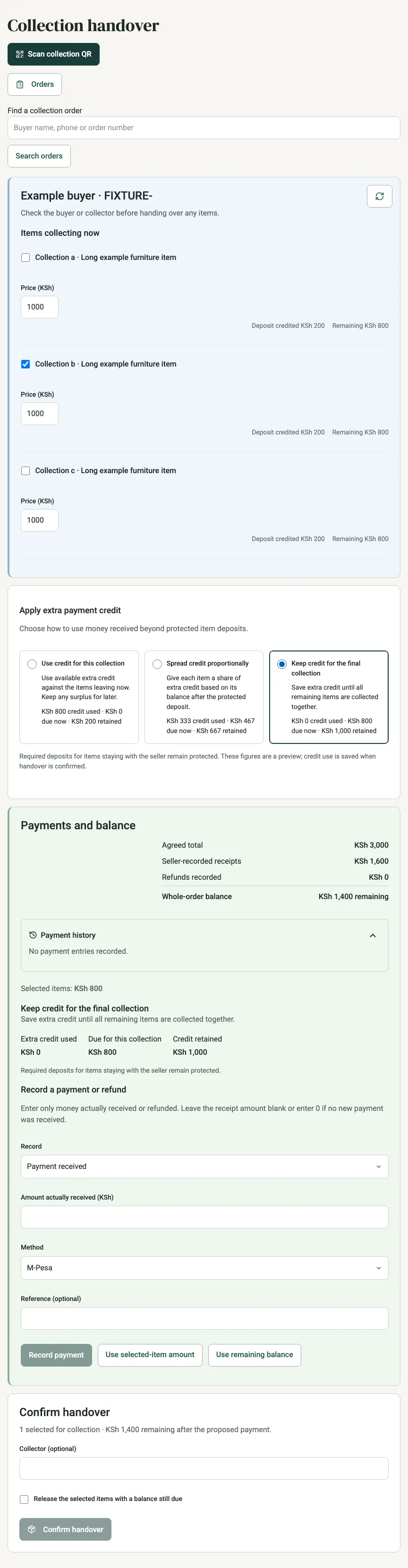
Buyer collection is separate from the summary. Copy number and Copy amount share one row in the M-Pesa box.
Combined offers and payment reports
A buyer can create one order from multiple accepted offers and regular same-shop listings; each line retains its agreed price and deposit. This happens before checkout. Adding an item to an existing order remains a separate seller action with buyer agreement. Cancellation does not reactivate converted offers. Review a pending buyer payment report in Payments and balance before making another manual payment entry. Adding/changing only a reference needs no reason; changing amount or method, or rejecting a report, does.
Version details: V1.2 guide. Exact source and test evidence are recorded in the release manifest; illustrations may predate minor layout changes.
V1.2 guide · Revised 13-Nov-26